TeacherBook CLI User Guide
TeacherBook CLI is a desktop app for managing student and parent contacts, optimized for use via a Command Line Interface (CLI) while still providing the benefits of a Graphical User Interface (GUI). If you can type fast, TeacherBook CLI can help you manage classroom contact information more efficiently than traditional GUI apps.
Who is this for? TeacherBook CLI is designed for teachers in primary and secondary schools who need to keep track of student and parent contact details across multiple classes. It is best suited for users who are comfortable typing commands and prefer keyboard-driven workflows over mouse-based navigation.
What problem does it solve? Teachers often juggle contact information across spreadsheets, physical records, and school systems. TeacherBook CLI centralises this into a single searchable, filterable, and exportable contact book — with features like class-based filtering, student flagging for follow-ups, and CSV import/export to integrate with existing school workflows.
Table of contents
- Quick start
-
Features
- Viewing help
- Adding a contact
- Listing all contacts
- Sorting all contacts
- Importing contacts from CSV
- Exporting contacts to CSV
- Editing a contact
- Filtering contacts by class
- Locating contacts by name
- Adding a tag cumulatively
- Adding or clearing a remark
- Viewing flagged contacts
- Flagging a contact for follow-up
- Removing a follow-up flag
- Undoing the previous change
- Redoing the previous undo
- Deleting contact(s)
- Clearing all entries
- Exiting the program
- Saving the data
- Editing the data file
- Archiving data files
- FAQ
- Known issues
- Command summary
Quick start
-
Ensure you have Java
17or above installed in your Computer.
Mac users: Ensure you have the precise JDK version prescribed here. -
Download the latest
.jarfile from the TeacherBook CLI releases page. -
Copy the file to the folder you want to use as the home folder for your TeacherBook.
-
Open a command terminal,
cd(change directory) into the folder you put the jar file in, and use thejava -jar TeacherBookCLI.jarcommand to run the application.
A GUI similar to the below should appear in a few seconds. Note how the app contains some sample data.
-
Type the command in the command box and press Enter to execute it. e.g. typing
helpand pressing Enter will open the help window.
Some example commands you can try:-
list: Lists all contacts. -
add n/John Doe p/98765432 e/johnd@example.com a/John street, block 123, #01-01: Adds a contact namedJohn Doeto the TeacherBook. -
delete 3: Deletes the 3rd contact shown in the current list. -
delete 2-5: Deletes contacts at positions 2 through 5 in the current list (inclusive range). -
delete all: Deletes every contact currently shown in the list (e.g. the whole list afterlist, or only matches afterfind/filter). This is different fromclear, which removes all contacts in the entire address book regardless of what is displayed. -
clear: Deletes all contacts. -
sort: Sort all contacts by address (default). -
sort name: Sort all contacts by name alphabetically. -
import C:\data\contacts.csv: Imports contacts from a CSV file. -
export C:\data\contacts.csv: Exports all contacts to a CSV file. -
exit: Exits the app.
-
-
Refer to the Features below for details of each command.
Features
ℹ️ Notes about the command format:
-
Words in
UPPER_CASEare the parameters to be supplied by the user.
e.g. inadd n/NAME,NAMEis a parameter which can be used asadd n/John Doe. -
Items in square brackets are optional.
e.gn/NAME [t/TAG]can be used asn/John Doe t/studentor asn/John Doe. -
Items with
… after them can be used multiple times including zero times.
e.g.[t/TAG]…can be used ast/student,t/student t/parentetc. -
Parameters can be in any order.
e.g. if the command specifiesn/NAME p/PHONE_NUMBER,p/PHONE_NUMBER n/NAMEis also acceptable. -
Extraneous parameters for commands that do not take in parameters (such as
list,exitandclear) will be ignored.
e.g. if the command specifieslist 123, it will be interpreted aslist. -
If you are using a PDF version of this document, be careful when copying and pasting commands that span multiple lines as space characters surrounding line-breaks may be omitted when copied over to the application.
Viewing help : help
Shows usage information in the help window. You can also target a specific command.
Formats:
-
help— opens the help window with the full command summary. -
help COMMAND_WORD— shows usage for that command (e.g.,help add,help list). - Both the
helpkeyword and theCOMMAND_WORDargument are case-insensitive. e.g.HELP add,help ADD, andHelp Addall show the usage for theaddcommand.
Tip: The help window includes a link to the full User Guide.
- The Copy URL button copies the User Guide link shown in the help window to your clipboard.
- You can then paste that link into a browser to open the guide (current URL:
https://ay2526s2-cs2103-f09-3.github.io/tp/UserGuide.html).
Example help window:

Adding a contact: add
Adds a contact to the address book.
Format: add n/NAME p/PHONE_NUMBER e/EMAIL a/ADDRESS [c/CLASS] [r/REMARK] [t/TAG]…
-
CLASSrefers to the contact’s class where applicable (e.g. 3A, 4B). Must be alphanumeric. -
Remark (
r/): optional. If given, sets an initial remark; ifr/is present with only spaces (or empty), the contact has no remark. To add or change remarks later, you can also useremarkoreditwithr/(see Adding or clearing a remark and Editing a contact below).
Examples:
add n/John Doe p/98765432 e/johnd@example.com a/John street, block 123, #01-01add n/Betsy Crowe t/friend e/betsycrowe@example.com a/Newgate Prison p/1234567 c/3A t/criminal-
add n/Jane Tan p/91234567 e/jane@example.com a/Blk 1 r/Allergic to dairy t/parentAdds a contact with an initial remark.
Listing all contacts : list
Shows a list of all contacts in the address book.
Format: list
Sorting all contacts : sort
Shows a list of all contacts in the address book sorted by the selected field.
Format: sort [address|name]
-
sortandsort addresssort by address alphabetically. -
sort namesorts by name alphabetically.
Importing contacts from CSV : import
Imports contacts from a CSV file.
Format: import FILE_PATH
-
FILE_PATHis the location and name of the CSV file to import from. - Both relative paths (e.g.
data\contacts.csv) and absolute paths (e.g.C:\data\contacts.csv) are accepted.
CSV row format:
name,phone,email,address[,class][,tag1;tag2;...]
CSV import rules:
- Encoding: UTF-8 CSV is expected. A UTF-8 BOM at the start of the first value is detected and handled automatically.
- Header detection: the first row is treated as a header only if the first cell is
name(case-insensitive), and that row is ignored. - Duplicate detection: duplicates are detected by
nameonly (not by all fields). - Skip feedback: invalid/duplicate rows are skipped, and up to 10 skipped-row reasons are shown after import.
- Quoting: values containing commas should be wrapped in double quotes.
Notes:
- The first row can be a header (e.g.
name,phone,email,address,class,tags) and it will be ignored. - Rows with invalid data are skipped.
- Duplicate contacts (same name) are skipped.
- Up to 10 skipped-row reasons are shown after import.
- Addresses containing commas should be wrapped in double quotes.
- Known limitation: because header detection checks only the first cell, a first data row starting with
name(e.g.name,91234567,user@example.com,...) may be treated as a header and skipped without a row-specific reason. - Tags are optional and should be separated with semicolons (
;).
Examples:
import C:\data\contacts.csvimport C:\Users\Alex\Downloads\new_contacts.csv
Exporting contacts to CSV : export
Exports all contacts from the address book to a CSV file.
Format: export FILE_PATH
-
FILE_PATHis the location and name of the file to save to. - Both relative paths (e.g.
data\contacts.csv) and absolute paths (e.g.C:\data\contacts.csv) are accepted.
Notes:
- The command writes a CSV header:
name,phone,email,address,class,tags. - If needed, parent folders in the given file path are created automatically.
- Existing files at the same file path will be overwritten.
- Tags are exported as a semicolon-separated list.
Examples:
export C:\data\contacts.csvexport C:\Users\Alex\Desktop\backup\contacts.csv
Editing a contact : edit
Edits an existing contact in the address book.
Format: edit INDEX [n/NAME] [p/PHONE] [e/EMAIL] [a/ADDRESS] [c/CLASS] [r/REMARK] [t/TAG]…
- Edits the contact at the specified
INDEX. The index refers to the index number shown in the displayed contact list. The index must be a positive integer 1, 2, 3, … - At least one of the optional fields must be provided.
- Existing values will be updated to the input values.
-
Tags (
t/TAG): supplyingt/replaces the entire tag set for that contact—the new tags are not merged with old ones. Any tag you omit is removed. To add tags while keeping existing ones, use thetagcommand instead (see Adding a tag cumulatively below). - You can remove all the contact’s tags by typing
t/without specifying any tags after it. - You can clear the contact’s class by typing
c/without specifying a value after it. -
Remark (
r/): optional. Sets or updates the remark; typingr/with only spaces clears the remark (same behaviour as theremarkcommand—see Adding or clearing a remark below).
Examples:
-
edit 1 p/91234567 e/johndoe@example.comEdits the phone number and email address of the 1st contact to be91234567andjohndoe@example.comrespectively. -
edit 2 n/Betsy Crower t/Edits the name of the 2nd contact to beBetsy Crowerand clears all existing tags. -
edit 1 c/4BEdits the class of the 1st contact to4B. -
edit 3 r/Needs consent formUpdates the remark of the 3rd contact. -
edit 1 r/Clears the remark of the 1st contact.
Filtering contacts by class: filter
Filters and displays contacts who belong to the specified class.
Format: filter c/CLASS
- Do not add any text before
c/other than optional spaces at the start (e.g.filter hello c/3Ais invalid). - The filter is case-insensitive. e.g.
c/3awill match contacts in class3A. - Only contacts with a matching class are shown. Use
listto show all contacts again.
Examples:
-
filter c/3AShows all contacts in class 3A. -
filter c/4BShows all contacts in class 4B.
Locating contacts by name: find
Finds contacts whose names contain any of the given keywords.
Format: find KEYWORD [MORE_KEYWORDS]
- The
findcommand word is case-insensitive. e.g.FIND alex,Find alex, andfind alexall work. - The search keywords are also case-insensitive. e.g
hanswill matchHans - The order of the keywords does not matter. e.g.
Hans Bowill matchBo Hans - Only the name is searched.
- Only full words will be matched e.g.
Hanwill not matchHans - Contacts matching at least one keyword will be returned (i.e.
ORsearch). e.g.Hans Bowill returnHans Gruber,Bo Yang
Examples:
-
find JohnreturnsjohnandJohn Doe -
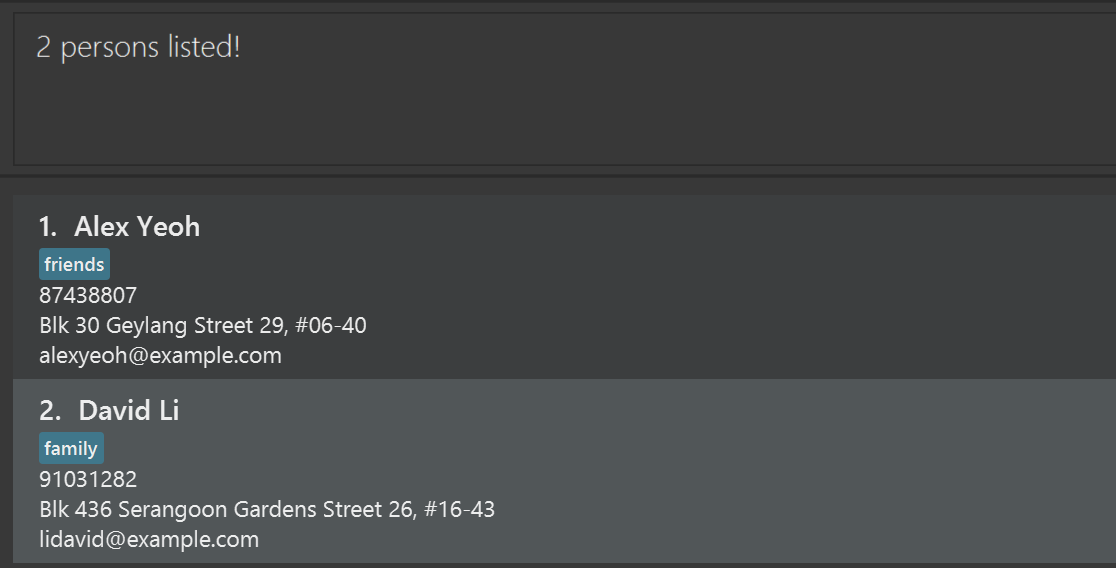
find alex davidreturnsAlex Yeoh,David Li
Adding a tag cumulatively: tag
Adds one or more tags on top of what the contact already has (cumulative). Existing tags stay unless you remove them elsewhere.
Format: tag INDEX t/TAG [t/MORE_TAGS]…
- Cumulative: new tags are added to the current list; other tags are not cleared.
- To replace the whole tag set in one go (or clear all tags with
t/), useeditwitht/TAG…instead (see Editing a contact above)—that command overwrites all tags.
Examples:
-
tag 2 t/supportAdds the tagsupportto the 2nd contact’s existing tags. -
tag 5 t/exco t/honsAdds the tagsexcoandhonsto the 5th contact’s existing tags.
Adding or clearing a remark: remark
Adds a remark to a contact, or clears the existing remark.
Format: remark INDEX r/[REMARK]
- Adds or updates the remark of the contact at the specified
INDEX. - You can clear a contact’s remark by typing
r/followed only by spaces.
Examples:
-
remark 1 r/Allergic to peanutsAdds a remark to the 1st contact. -
remark 2 r/Clears the remark of the 2nd contact.
Viewing flagged contacts: dashboard
Shows a summary of all currently flagged contacts and filters the displayed list to them.
Format: dashboard
Examples:
dashboard
Flagging a contact for follow-up: flag
Flags a contact with a follow-up reason.
Format: flag INDEX r/REASON
- Flags the contact at the specified
INDEX. - The reason is shown in the dashboard and can be removed later using
unflag.
Examples:
flag 3 r/Missing consent form for field tripflag 1 r/Parent requested a callback
Removing a follow-up flag: unflag
Removes an existing follow-up flag from a contact.
Format: unflag INDEX
Examples:
unflag 3
Undoing the previous change: undo
Reverts the most recent command that modified the TeacherBook.
Format: undo
- Only commands that change contact data can be undone. These are:
add,edit,delete,clear,tag,remark,flag,unflag,import, andsort. - Commands that do not modify data (
list,find,filter,help,export,dashboard,exit) are not undoable. - Only one level of undo is supported (i.e. you can only undo the single most recent change).
- If there is nothing to undo (e.g. no modifying command has been run yet),
undowill display the error messageNothing to undo!.
Examples:
-
delete 1followed byundorestores the deleted person. -
clearfollowed byundorestores all contacts. -
clear, thenhelp, thenundorestores all contacts becausehelpis read-only and does not consume undo history.
Redoing the previous undo: redo
Re-applies the most recently undone command.
Format: redo
-
redois only available immediately after anundo. If you execute another modifying command after undoing,redois no longer available. - If there is nothing to redo,
redowill display the error messageNothing to redo!.
Examples:
-
delete 1, thenundo, thenredodeletes the person again.
Deleting contact(s) : delete
Deletes one or more specified contacts from the address book.
Format: delete INDEX [MORE_INDICES]
Alternative formats:
delete START_INDEX-END_INDEX-
delete all - Deletes the contact(s) at the specified index or indices.
- The indices refer to the index numbers shown in the displayed contact list.
- Each index must be a positive integer 1, 2, 3, …
-
delete 1 3 5deletes multiple displayed contacts in one command. -
delete 2-5deletes a range of displayed contacts. -
delete alldeletes all contacts currently shown in the displayed list.
Examples:
-
listfollowed bydelete 2deletes the 2nd contact in the address book. -
listfollowed bydelete 1 3 5deletes the 1st, 3rd, and 5th contacts in the address book. -
listfollowed bydelete 2-4deletes the 2nd to 4th contacts in the address book. -
find Betsyfollowed bydelete 1deletes the 1st contact in the results of thefindcommand. -
filter c/3Afollowed bydelete alldeletes all currently displayed contacts in class3A.
Clearing all entries : clear
Clears all entries from the TeacherBook.
Format: clear
Exiting the program : exit
Exits the program.
Format: exit
Saving the data
TeacherBook data are saved in the hard disk automatically after any command that changes the data. There is no need to save manually.
Editing the data file
TeacherBook data are saved automatically as a JSON file [JAR file location]/data/addressbook.json. Advanced users are welcome to update data directly by editing that data file.
 Caution:
If your changes to the data file makes its format invalid, TeacherBook will discard all data and start with an empty data file at the next run. Hence, it is recommended to take a backup of the file before editing it.
Caution:
If your changes to the data file makes its format invalid, TeacherBook will discard all data and start with an empty data file at the next run. Hence, it is recommended to take a backup of the file before editing it.Furthermore, certain edits can cause the TeacherBook to behave in unexpected ways (e.g., if a value entered is outside of the acceptable range). Therefore, edit the data file only if you are confident that you can update it correctly.
Archiving data files
TeacherBook CLI does not provide a built-in data-archiving feature in v1.6.
If you want to keep historical snapshots, manually copy the data/addressbook.json file to another folder or filename as a backup before making major changes.
FAQ
Q: How do I transfer my data to another Computer?
A: Install the app in the other computer and overwrite the empty data file it creates with the file that contains the data of your previous TeacherBook home folder.
Known issues
-
When using multiple screens, if you move the application to a secondary screen, and later switch to using only the primary screen, the GUI will open off-screen. The remedy is to delete the
preferences.jsonfile created by the application before running the application again. -
If you minimize the Help Window and then run the
helpcommand (or use theHelpmenu, or the keyboard shortcutF1) again, the original Help Window will remain minimized, and no new Help Window will appear. The remedy is to manually restore the minimized Help Window. -
During CSV import, header detection can be over-aggressive. If the first row begins with
name, the app may assume it is a header row and skip it without showing a row-level skip reason.
Command summary
| Action | Format, Examples |
|---|---|
| Add |
add n/NAME p/PHONE_NUMBER e/EMAIL a/ADDRESS [c/CLASS] [r/REMARK] [t/TAG]… e.g., add n/James Ho p/22224444 e/jamesho@example.com a/123, Clementi Rd, 1234665 c/3A t/friend t/colleague
|
| Clear | clear |
| Delete |
delete INDEX [MORE_INDICES]e.g., delete 3, delete 1 3 5, delete all
|
| Edit |
edit INDEX [n/NAME] [p/PHONE] [e/EMAIL] [a/ADDRESS] [c/CLASS] [r/REMARK] [t/TAG]…e.g., edit 2 n/James Lee e/jameslee@example.com
|
| Dashboard | dashboard |
| Flag |
flag INDEX r/REASONe.g., flag 3 r/Missing consent form
|
| Unflag |
unflag INDEXe.g., unflag 3
|
| Filter |
filter c/CLASSe.g., filter c/3A
|
| Find |
find KEYWORD [MORE_KEYWORDS]e.g., find James Jake
|
| Import |
import FILE_PATHe.g., import C:\data\contacts.csv
|
| Export |
export FILE_PATHe.g., export C:\data\contacts.csv
|
| Remark |
remark INDEX r/[REMARK]e.g., remark 1 r/Allergic to peanuts
|
| Tag |
tag INDEX t/TAG [t/MORE_TAGS]e.g., tag 1 t/exco
|
| List | list |
| Sort |
sort [address\|name]e.g., sort, sort name
|
| Undo | undo |
| Redo | redo |
| Help | help |